---
title: Canceling a Client's Membership
description: In this article, learn how to cancel a client's membership.
---
[Skip to content](https://help.upperhand.com/cancel-a-membership#main-content)
English
Show submenu for translations
[Submit a ticket](https://help.upperhand.com/kb-tickets/new?hsLang=en)

Open main navigation
Close main navigation
- English
Show submenu for translations
- [Submit a ticket](https://help.upperhand.com/kb-tickets/new)
- [Go to upperhand.com](https://upperhand.com/)
[Go to upperhand.com](https://upperhand.com/)
Hello. How can we help you?
- There are no suggestions because the search field is empty.
1. [UP Help Center](https://help.upperhand.com/?hsLang=en)
2. [Memberships](https://help.upperhand.com/memberships?hsLang=en)
# Canceling a Client's Membership
## In this article, learn how to cancel a client's membership.
APPLIES TO: Admins
Last updated: January 24, 2024
**Note: **If you are a client trying to [cancel your membership](https://help.upperhand.com/cancel-your-membership?hsLang=en), you *cannot *cancel your own membership. You will need to contact the business to proceed with canceling.
As an Admin, you are able to cancel a client's membership from their Client Profile Page or from the Membership page itself.
#### Cancel a Membership from the Client Profile Page
- Log in to your account and hover over the navigation bar on the left, click **Contacts**
- Under the **Clients **tab, search for the client you need to cancel their membership and click on their name to navigate to their specific Client Profile Page
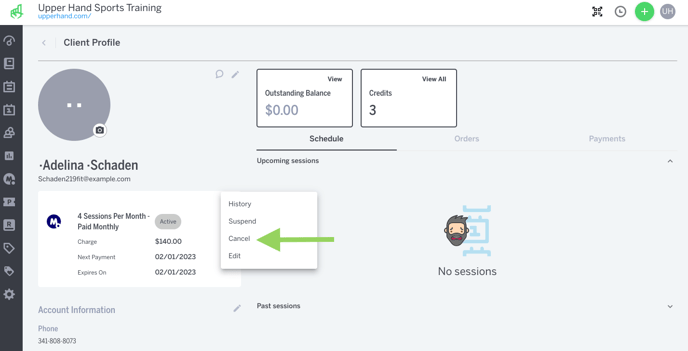
- You should see their Membership card underneath their name and email.
- Click the **three dot menu** inside the membership card on the top right.
- Select **Cancel **from the drop down menu
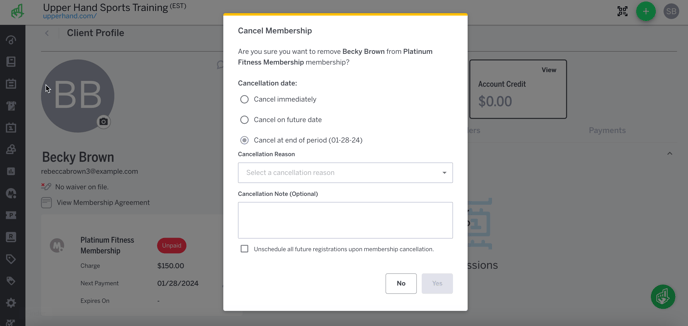
- The **Cancel Membership **modal will pop-up and ask you if you would like the cancellation date to be:
- **Cancel immediately **- the member will immediately be canceled and lose their membership benefits or charged again
- **Cancel on future date** - if selected, you will be asked to select the future cancellation date that the member will be cancelled and lose their membership benefits. ***Note:*** *If there is a payment or any payments in between now and the date you select, they will still be charged.*
- **Cancel at end of period - **the member will be cancelled at the end of their current billing cycle, lose all benefits that time and not be charged again
- Select a **Cancellation Reason** from the drop down list of options
- **Note:** the **Cancellation Reasons **will appear on the [**Membership Analytics**](https://help.upperhand.com/membership-analytics?hsLang=en) report
- Input additional context inside the **Cancellation Note **text box, if necessary
- You can also select to **Unschedule all future registrations upon membership cancellations.**
#### Using the App
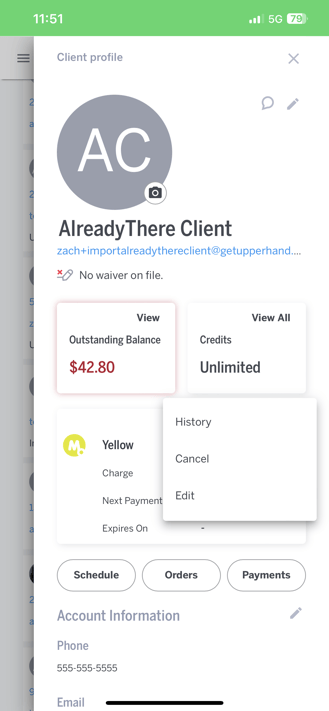
To cancel a client's membership from the client profile **in the app:**
- Log in to your account and hover over the navigation bar on the left, click **Contacts**
- Under the **Clients **tab, search for the client you need to cancel their membership and click on their name to navigate to their specific Client Profile Page
- You should see their Membership card underneath their name and email.
- Click the **three dot menu** inside the membership card on the top right.
- Select **Cancel **from the drop down menu
#### Cancel a Membership from the Membership Page
- Navigate to the membership the client is in that you need to cancel, find their name and select to Cancel them.
#### Using the App:
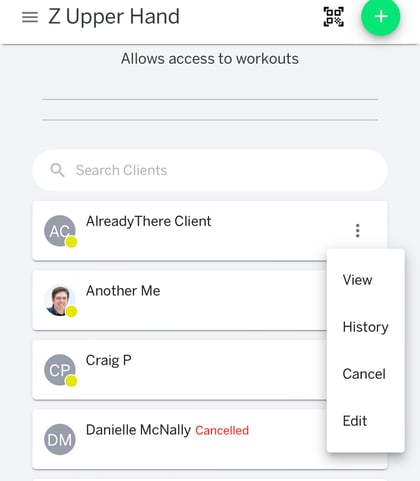
To cancel a client's membership from the membership page **in the app:**
- Navigate to the membership the client is in that you need to cancel, find their name and select to Cancel them.
#### **Things to Note**
- If a client has an unpaid outstanding balance on a membership while it is active, cancelling the membership will not remove the balance automatically. It will still show up as a balance until payment has been collected or waived.
- If you want to reactivate a cancelled member's membership, you will just need to re-enroll them in the membership.
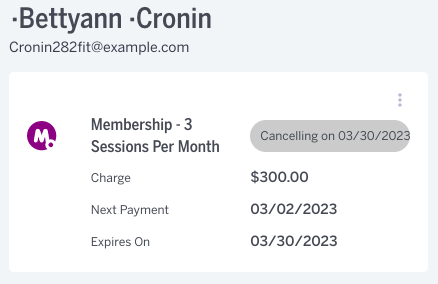
- If you selected cancel on a specific date, you will see the calendar card updated to show you the date selected and also see the added expiration date.
- You will *always *need to cancel a client's membership before [archiving them](https://help.upperhand.com/archive-a-client?hsLang=en) if you want them to stop being charged for the membership.
- [Getting Started](https://help.upperhand.com/getting-started?hsLang=en)
- [Account Setup](https://help.upperhand.com/account-setup?hsLang=en#main-content)
- [Account Settings](https://help.upperhand.com/account-setup?hsLang=en#account-settings)
- [Help & Resources](https://help.upperhand.com/account-setup?hsLang=en#help-resources)
- [Billing](https://help.upperhand.com/account-setup?hsLang=en#billing)
- [Events](https://help.upperhand.com/events?hsLang=en#main-content)
- [Event Setup](https://help.upperhand.com/events?hsLang=en#event-setup)
- [Browse Events](https://help.upperhand.com/events?hsLang=en#browse-events)
- [Event Admin View](https://help.upperhand.com/events?hsLang=en#event-admin-view)
- [Classes](https://help.upperhand.com/classes?hsLang=en)
- [Teams](https://help.upperhand.com/teams?hsLang=en)
- [Calendar](https://help.upperhand.com/calendar?hsLang=en)
- [Contacts](https://help.upperhand.com/contacts?hsLang=en#main-content)
- [Staff](https://help.upperhand.com/contacts?hsLang=en#staff)
- [Clients](https://help.upperhand.com/contacts?hsLang=en#clients)
- [Groups](https://help.upperhand.com/contacts?hsLang=en#groups)
- [Archived](https://help.upperhand.com/contacts?hsLang=en#archived)
- [Marketing](https://help.upperhand.com/marketing?hsLang=en)
- [Reports](https://help.upperhand.com/reports?hsLang=en)
- [Memberships](https://help.upperhand.com/memberships?hsLang=en)
- [Credit Passes](https://help.upperhand.com/credit-passes?hsLang=en)
- [Resources](https://help.upperhand.com/resources?hsLang=en)
- [Retail](https://help.upperhand.com/retail?hsLang=en)
- [Settings](https://help.upperhand.com/settings?hsLang=en)
- [Point of Sale (POS)](https://help.upperhand.com/point-of-sale-pos?hsLang=en)
- [Payments](https://help.upperhand.com/payments?hsLang=en#main-content)
- [Paysafe/NETBANX](https://help.upperhand.com/payments?hsLang=en#paysafe-netbanx)
- [Client Side](https://help.upperhand.com/client-side?hsLang=en#main-content)
- [Top Searched Articles](https://help.upperhand.com/client-side?hsLang=en#top-searched-articles)
- [Account Management](https://help.upperhand.com/client-side?hsLang=en#account-management)
- [Event Sign Up](https://help.upperhand.com/client-side?hsLang=en#event-sign-up)
- [Scheduling](https://help.upperhand.com/client-side?hsLang=en#scheduling)
- [Payments](https://help.upperhand.com/client-side?hsLang=en#payments)
- [Memberships & Passes](https://help.upperhand.com/client-side?hsLang=en#memberships-passes)
- [Additional Resources](https://help.upperhand.com/additional-resources?hsLang=en#main-content)
- [Hardware](https://help.upperhand.com/additional-resources?hsLang=en#hardware)
- [Upper Hand AI](https://help.upperhand.com/additional-resources?hsLang=en#upper-hand-ai)
- [WebKit by Upper Hand](https://help.upperhand.com/additional-resources?hsLang=en#webkit-by-upper-hand)
- [Admin Side](https://help.upperhand.com/admin-side?hsLang=en#main-content)
- [Scheduling](https://help.upperhand.com/admin-side?hsLang=en#scheduling)
[](https://upperhand.com)
Email Hours: M-F 9am - 2am EST
Chat Hours: M-F 9am - 5pm EST
Copyright © 2026, Upper Hand