
Applies to: Admins
Last Updated: March 16, 2026
This feature enables admins to share credits from one client profile to another within the same family. When parents mistakenly purchase credits for themselves instead of their athlete or a sibling can no longer attend a session, an admin can just share the unused credits with another profile under their account so they don't go to waste.
Note: Only credits purchased or returned for open booking events can be shared. Membership credits and credits from Credit Passes cannot be shared with this feature.
How to Share Credits
- Log in to your Upper Hand Account
- Go to Contacts > Search for the Client whose credits you'd like to share
- Open their client profile by clicking on their name
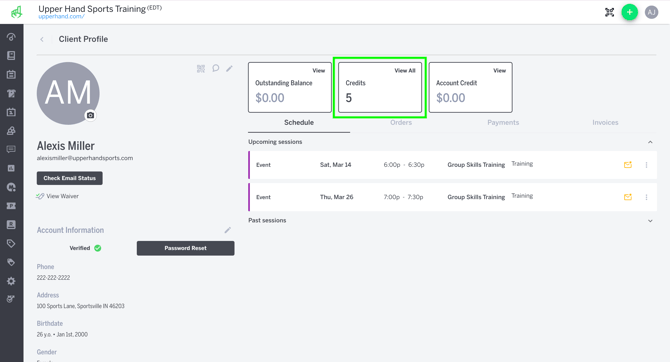
- Click View All on the Credits card in their profile
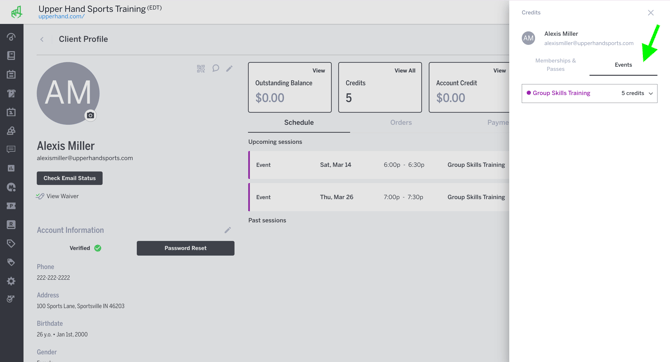
- Go to the Events tab in their Credits drawer
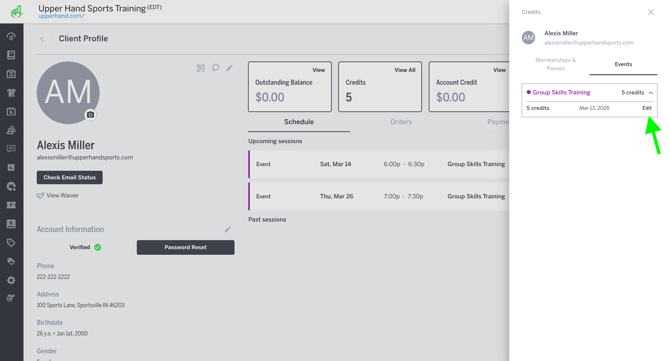
- Find the event and click on the drop down arrow next to the amount of credits available for that event
- Click the Edit button next to the credits you'd like to share
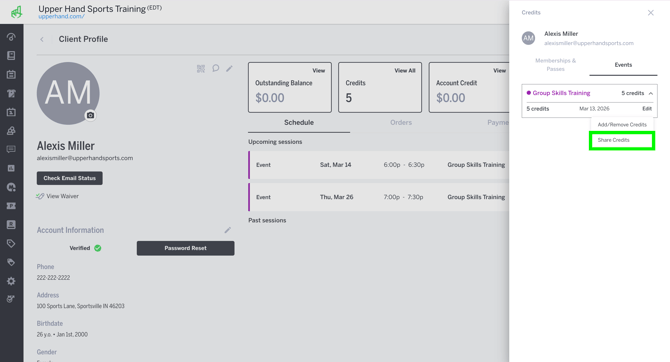
- Click "Share Credits" option from the edit menu and the Share Credits modal will populate
- The Share Credits modal will populate showing how many credits are available to share
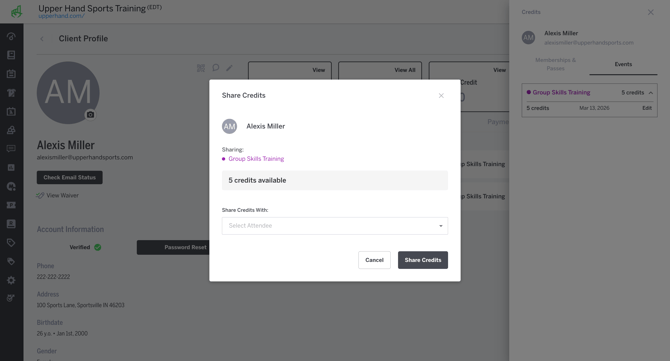
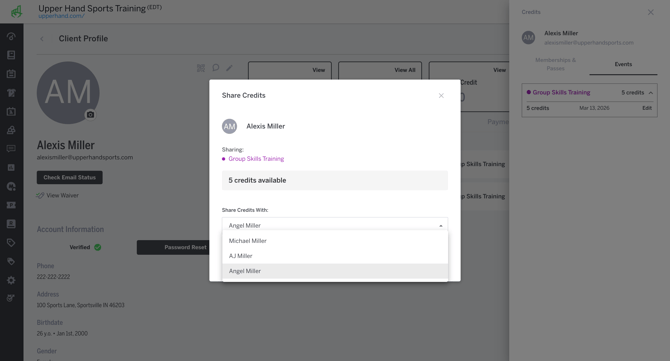
- Select the profile you'd like to share with
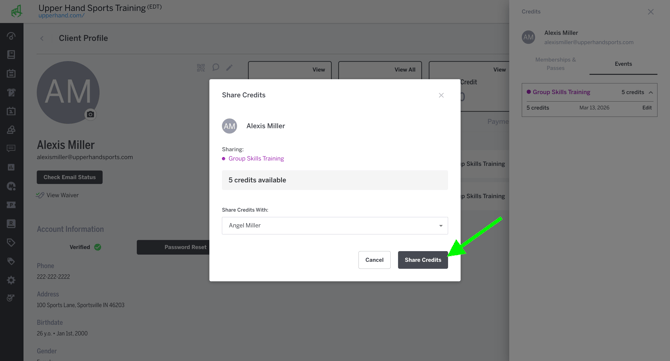
- Once you've selected the profile, click the Share Credits button
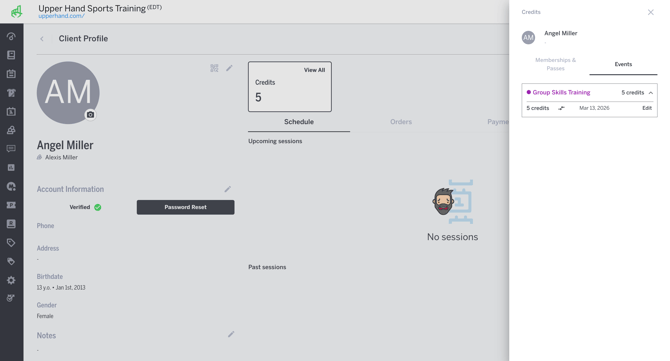
- Once credits have been shared, navigate to the profile you shared credits with to see available shared credits in their Credit Drawer
Things to Note:
- Only admins have access to the share credits feature.
- When viewing client credits a two-way arrow icon will show next to the credit total indicating credits have been shared.
- Credits can be shared with multiple profiles under the same account.
- If credits are shared, any changes made to one profile's shared credit applies to them all
- Example: If you manually remove a client's shared credits, all profiles will reflect that deduction. The same behavior occurs if the credit is manually increased.
- Example 2: If a profile uses a shared credit to schedule a session, all profiles who have that shared credit will see it deducted from their profile