![White Full @2x.png]](https://help.upperhand.com/hs-fs/hubfs/Brand%20Assets/White%20Full%20@2x.png?height=40&name=White%20Full%20@2x.png)
APPLIES TO: Admins
Last updated: May 10, 2024
Overview
Credit passes allow you to sell packs of classes/credits to clients and assign which events they can be used for.
How to Create a New Credit Pass
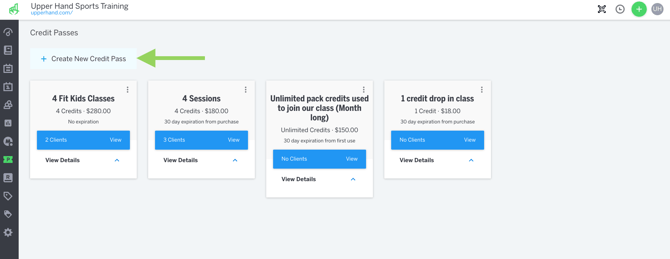
- Hover over the left navigation tab and click Credit Passes
- Click Credit New Credit Pass
- Name the credit pass. This will be the name of the pass and what your clients will see when purchasing.
- Set credit pass Description.
- Note: This should be used to explain what the credit pass can be used for.
- Set Pricing. You will want to set the pricing for the total amount you want to charge for the pass.
- Note: Credit Passes are a one-time charge for your clients to purchase the credit pass and can be purchased multiple times by one client.
- Optional: Set a Usage Limit
- Note: This will set a usage limit per client.
- Optional: Hide in Point of Sale
- Note: By selecting this option, the credit pass will not be able to be sold through Point of Sale.
- Optional: Hide in Client Checkout
- Note: By selecting this option, the credit pass will not be visible during client checkout. This is great if you want to sunset credit passes or un-list moving forward.
- Optional: Set Expiration.
- Note: Credit Passes can be set to expire x days after purchase, x days from first use, or on a certain date.
- Assign Session Credits
- Session credits can be set to unlimited or have a set quantity.
- Credits can be assigned to event types or specific events.
- Event types will allow them to schedule sessions for any open booking or class event listed under that event type.
- Note: Credits can only be used for open booking or class events.
- Click Create publish the Credit Pass.
Credit Passes Page URL
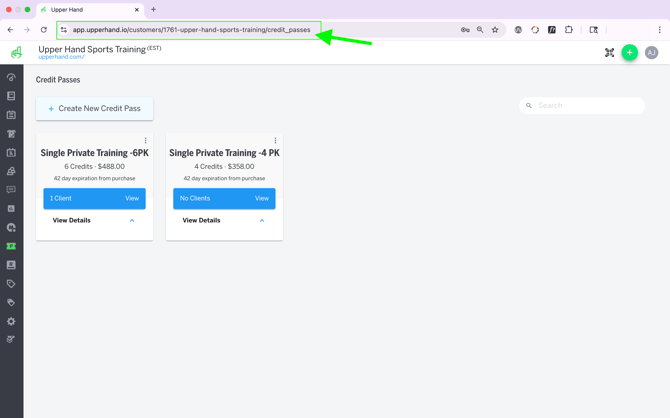
Once you've created your credit passes, you can return to your Credit Pass page and copy the full URL at the top of your browser. This URL will be what you post on your website, add to your social media posts, or email to clients that will list all passes available to purchase.