![White Full @2x.png]](https://help.upperhand.com/hs-fs/hubfs/Brand%20Assets/White%20Full%20@2x.png?height=40&name=White%20Full%20@2x.png)
APPLIES TO: Admin
Last updated: November, 18, 2025
The Inventory Report will show you statistics on your inventory during a given time period. You first will want to add your inventory that you have in stock. Learn how to add inventory here.
Inventory Report
- To access the report, log in to your Upper Hand account
- On the left hand nav select Reports > Inventory
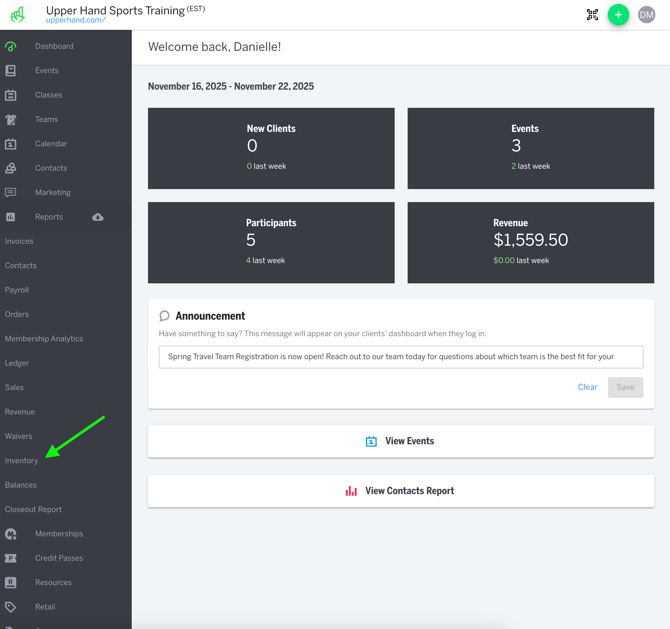
- The default Inventory Report shows
- All Products/Variants
- Live Qty
- Status
- In stock, Low Stock, Out of Stock
- Sold
- Price
- Cost
- Net Profile
- Retail Type
- Vendor
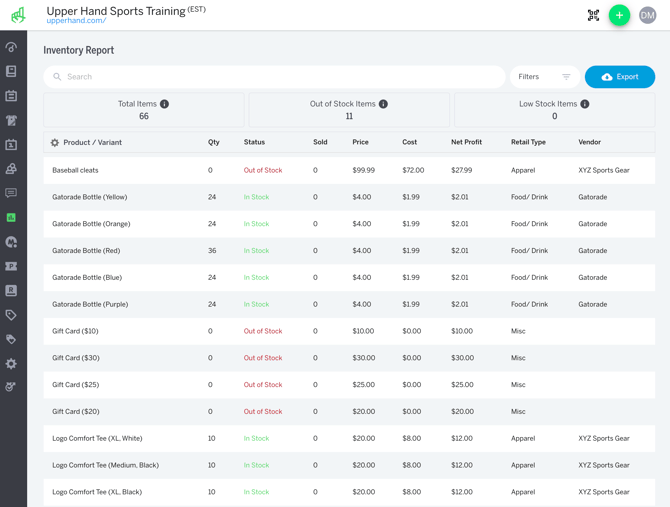
- The date filter allows you to select the timeframe you want to view
- Note: this will update the Sold, Price, Cost, Net Profile but Qty will always show the current live qty
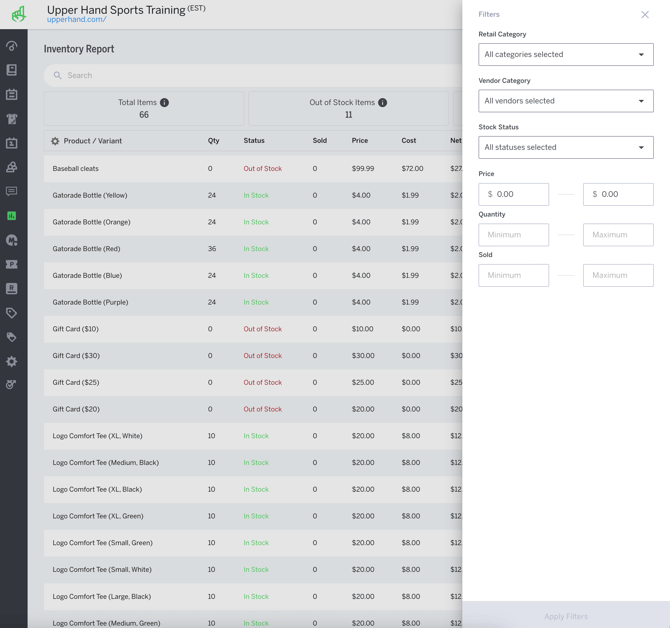
- Filters
- Retail Category
- Vendor
- Stock Status
- Price: Min - Max
- Qty: Min - Max
- Sold: Min - Max
- You can also export the report to a CSV file