---
title: Refund Installments of a Payment Plan
description: In this article, learn how to refund installments for a payment plan.
---
[Skip to content](https://help.upperhand.com/refund-installments-for-a-payment-plan#main-content)
English
Show submenu for translations
[Submit a ticket](https://help.upperhand.com/kb-tickets/new?hsLang=en)

Open main navigation
Close main navigation
- English
Show submenu for translations
- [Submit a ticket](https://help.upperhand.com/kb-tickets/new)
- [Go to upperhand.com](https://upperhand.com/)
[Go to upperhand.com](https://upperhand.com/)
Hello. How can we help you?
- There are no suggestions because the search field is empty.
1. [UP Help Center](https://help.upperhand.com/?hsLang=en)
2. [Payments](https://help.upperhand.com/payments?hsLang=en)
# Refund Installments of a Payment Plan
## In this article, learn how to refund installments of a payment plan.
APPLIES TO: Admins
Last updated: June 11, 2026
If you have a situation where an attendee that is enrolled in an event with a payment plan and you need to refund their payments, follow the steps outlined below to do so.
**Note:** This feature allows you to mass refund installments of a payment plan. You can still refund each payment separately one-by-one, if needed.
#### Refund Installments for a Payment Plan
- First, navigate to the [Event Admin View](https://help.upperhand.com/event-admin-view?hsLang=en) of the event the attendee is enrolled in by clicking the title of the event on your Manage Events list.
- Click the **Payment Plans tab**
**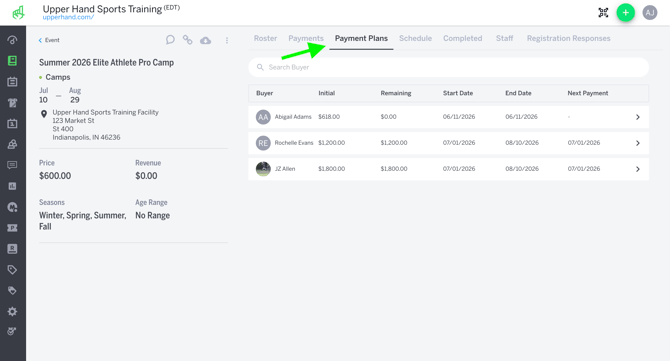**
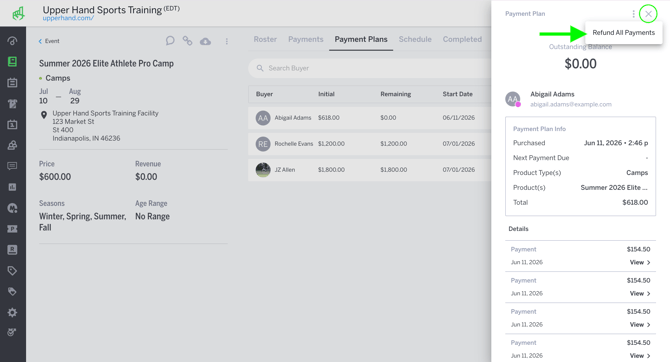
- **Click the line item** of the buyer whose payments you like to refund. This will opem their **Payment Plan drawer** on the right hand side
- Click **the three dot menu** on the top right hand side and select **Refund All Payments**
****
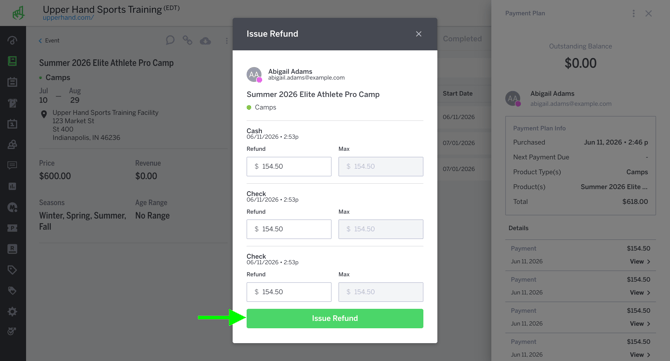
- The Issue Refund modal will populate with all installments listed and full refunds as the default amount for each
- ***Note**: If you want to refund a partial amount, you can edit the max amount for each installment. Additionally, if you'd only like to refund some of the installments, you can **change the amount to $0.00 for the payments you do not want refunded***
- Click **Issue Refund**
- [Getting Started](https://help.upperhand.com/getting-started?hsLang=en)
- [Account Setup](https://help.upperhand.com/account-setup?hsLang=en#main-content)
- [Account Settings](https://help.upperhand.com/account-setup?hsLang=en#account-settings)
- [Help & Resources](https://help.upperhand.com/account-setup?hsLang=en#help-resources)
- [Billing](https://help.upperhand.com/account-setup?hsLang=en#billing)
- [Events](https://help.upperhand.com/events?hsLang=en#main-content)
- [Event Setup](https://help.upperhand.com/events?hsLang=en#event-setup)
- [Browse Events](https://help.upperhand.com/events?hsLang=en#browse-events)
- [Event Admin View](https://help.upperhand.com/events?hsLang=en#event-admin-view)
- [Classes](https://help.upperhand.com/classes?hsLang=en)
- [Teams](https://help.upperhand.com/teams?hsLang=en)
- [Calendar](https://help.upperhand.com/calendar?hsLang=en)
- [Contacts](https://help.upperhand.com/contacts?hsLang=en#main-content)
- [Staff](https://help.upperhand.com/contacts?hsLang=en#staff)
- [Clients](https://help.upperhand.com/contacts?hsLang=en#clients)
- [Groups](https://help.upperhand.com/contacts?hsLang=en#groups)
- [Archived](https://help.upperhand.com/contacts?hsLang=en#archived)
- [Marketing](https://help.upperhand.com/marketing?hsLang=en)
- [Reports](https://help.upperhand.com/reports?hsLang=en)
- [Memberships](https://help.upperhand.com/memberships?hsLang=en)
- [Credit Passes](https://help.upperhand.com/credit-passes?hsLang=en)
- [Resources](https://help.upperhand.com/resources?hsLang=en)
- [Retail](https://help.upperhand.com/retail?hsLang=en)
- [Settings](https://help.upperhand.com/settings?hsLang=en)
- [Point of Sale (POS)](https://help.upperhand.com/point-of-sale-pos?hsLang=en)
- [Payments](https://help.upperhand.com/payments?hsLang=en#main-content)
- [Paysafe/NETBANX](https://help.upperhand.com/payments?hsLang=en#paysafe-netbanx)
- [Client Side](https://help.upperhand.com/client-side?hsLang=en#main-content)
- [Top Searched Articles](https://help.upperhand.com/client-side?hsLang=en#top-searched-articles)
- [Account Management](https://help.upperhand.com/client-side?hsLang=en#account-management)
- [Event Sign Up](https://help.upperhand.com/client-side?hsLang=en#event-sign-up)
- [Scheduling](https://help.upperhand.com/client-side?hsLang=en#scheduling)
- [Payments](https://help.upperhand.com/client-side?hsLang=en#payments)
- [Memberships & Passes](https://help.upperhand.com/client-side?hsLang=en#memberships-passes)
- [Additional Resources](https://help.upperhand.com/additional-resources?hsLang=en#main-content)
- [Hardware](https://help.upperhand.com/additional-resources?hsLang=en#hardware)
- [Upper Hand AI](https://help.upperhand.com/additional-resources?hsLang=en#upper-hand-ai)
- [WebKit by Upper Hand](https://help.upperhand.com/additional-resources?hsLang=en#webkit-by-upper-hand)
- [Admin Side](https://help.upperhand.com/admin-side?hsLang=en#main-content)
- [Scheduling](https://help.upperhand.com/admin-side?hsLang=en#scheduling)
[](https://upperhand.com)
Email Hours: M-F 9am - 2am EST
Chat Hours: M-F 9am - 5pm EST
Copyright © 2026, Upper Hand