---
title: Upgrade or Downgrade a Client's Membership
description: In this article, learn how to upgrade or downgrade a client's membership
---
[Skip to content](https://help.upperhand.com/upgrade-or-downgrade-a-clients-membership#main-content)
English
Show submenu for translations
[Submit a ticket](https://help.upperhand.com/kb-tickets/new?hsLang=en)

Open main navigation
Close main navigation
- English
Show submenu for translations
- [Submit a ticket](https://help.upperhand.com/kb-tickets/new)
- [Go to upperhand.com](https://upperhand.com/)
[Go to upperhand.com](https://upperhand.com/)
Hello. How can we help you?
- There are no suggestions because the search field is empty.
1. [UP Help Center](https://help.upperhand.com/?hsLang=en)
2. [Memberships](https://help.upperhand.com/memberships?hsLang=en)
# Upgrade or Downgrade a Client's Membership
## In this article, learn how to upgrade or downgrade a client's membership
APPLIES TO: Admins
Last updated: May 14, 2026
As an Admin you are able to upgrade or downgrade a client's membership from their Client Profile page.
**Note:** If you are a client trying to upgrade or downgrade your membership, you *cannot* upgrade/downgradeyour own membership. You will need to contact the business to proceed with any membership changes.
#### Upgrade or Downgrade a Client's Membership
- [Log in](https://help.upperhand.com/why-can-t-i-log-in-to-upper-hand?hsLang=en) to your account and go to the **Contacts** from the left hand
- Under the **Clients** tab, search for the client you need to cancel their membership and click on their name to navigate to their specific Client Profile Page
- You should see their Membership card underneath their name and email
- Click the **three dot menu** inside the membership card on the top right
- Select **Upgrade/Downgrade** from the drop down menu
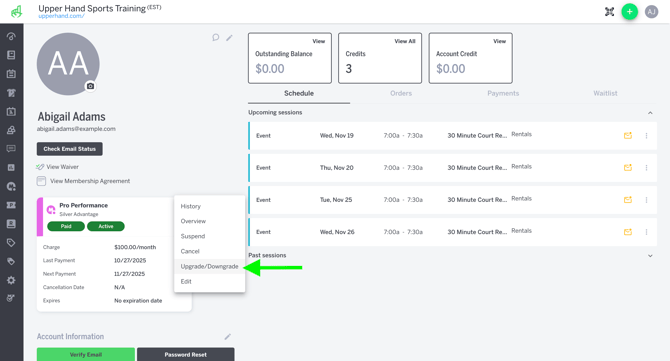
- The **Upgrade/Downgrade** modal will populate for you to select a date to initiate the upgrade or downgrade. There are two options:
- **End of Billing** - Client will be enrolled in the new membership at the end of the current subscription's billing cycle and they will be charged on that date
- **Immediately** - Client's existing membership is cancelled immediately and they're automatically enrolled and charged for the new membership today
- Next you **select a new membership for the client to be enrolled in** once their current membership expires at the end of their billing cycle.
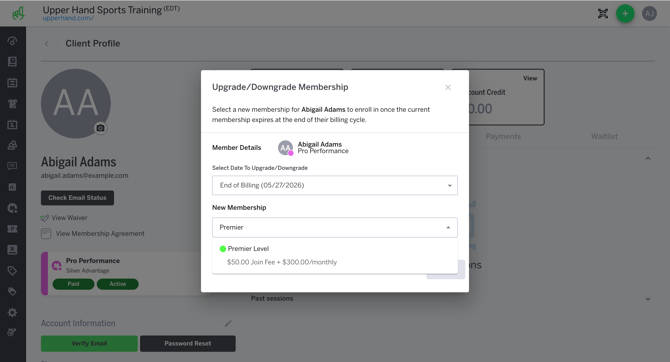
- Type to search or scroll through the list of memberships and select your desired upgraded or downgraded membership
- **Note**: If the membership selected has multiple tiers, you will be asked to select a single tier for the client to enroll in
- **Note**: If the membership selected has a join fee, you can **use the checkbox next to *Charge Join Fee*** to charge clients this fee when they enroll in the new membership
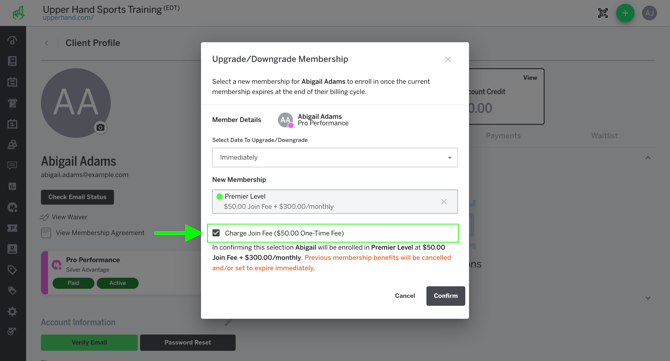
- Once you've made your new membership selection for the client you can click **Submit**
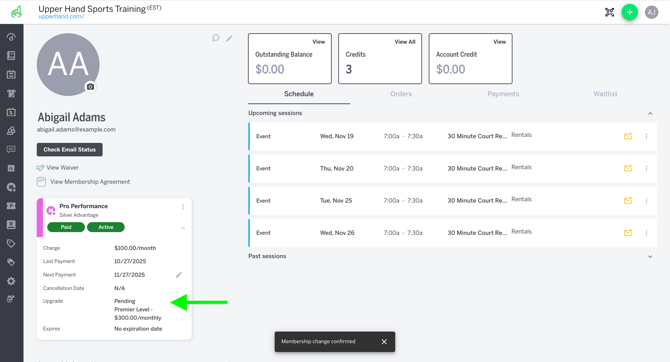
- You should receive a "Membership Change Confirmed" message once you submit your upgrade/downgrade selections
- If you select **Immediately**:
- Refresh your software/app to see your successful upgrade or downgrade
- If you selected **End of Billing**:
- **Click the drop down arrow on the existing membership card** to see the pending membership upgrade/downgrade along with the name of the membership selected
- Once the billing cycle is complete and the existing membership subscription expires, the client will automatically be charged for the new (upgraded/downgraded) membership
#### Cancel a pending upgrade or downgrade *(applicable for end of billing upgrade/downgrade)*
- Log in to your account and hover over the navigation bar on the left, click **Contacts**
- Under the **Clients** tab, search for the client you need to cancel their membership and click on their name to navigate to their specific Client Profile Page
- You should see their Membership card underneath their name and email.
- Click the **three dot menu** inside the membership card on the top right.
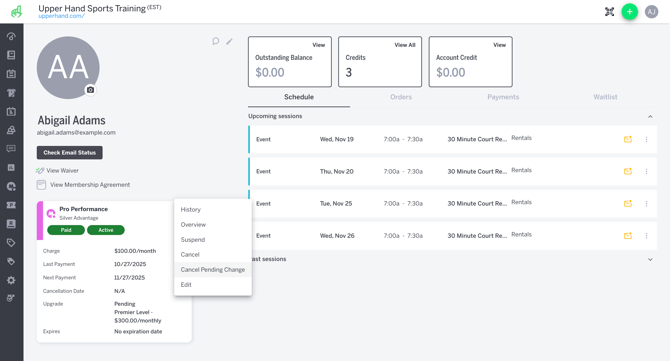
- Select **Cancel Pending Change** from the drop down menu
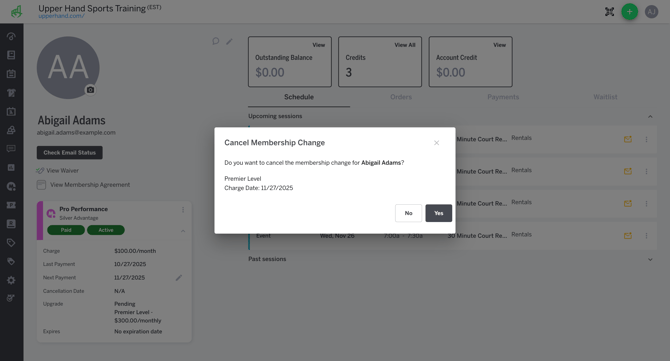
- The Cancel Membership Change modal will populate with the details of the upgrade/downgrade previously selected
- **Click Yes** to cancel the Upgrade/Downgrade
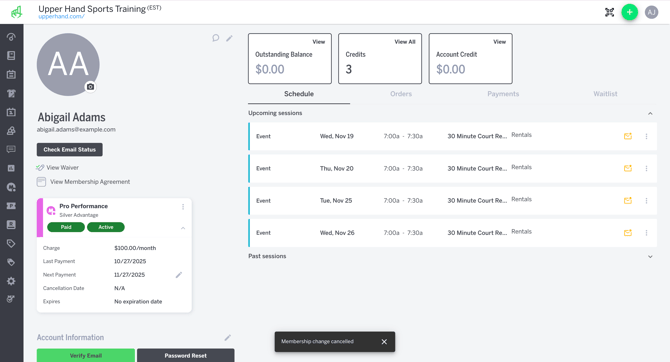
- **Click the drop down arrow on the existing membership card** to see the pending membership upgrade/downgrade is now removed
#### Things to note:
- Once an upgrade or downgrade is set the client will be automatically charged on the next billing date with their default card on file
- When the client is enrolled in the new upgraded or downgraded membership, their credits and/or benefits from the old membership will expire
- If the client's existing membership is a "one time" membership or a free membership you will not be able to upgrade/downgrade. You will need to cancel the membership and enroll them in a new membership via POS
- [Getting Started](https://help.upperhand.com/getting-started?hsLang=en)
- [Account Setup](https://help.upperhand.com/account-setup?hsLang=en#main-content)
- [Account Settings](https://help.upperhand.com/account-setup?hsLang=en#account-settings)
- [Help & Resources](https://help.upperhand.com/account-setup?hsLang=en#help-resources)
- [Billing](https://help.upperhand.com/account-setup?hsLang=en#billing)
- [Events](https://help.upperhand.com/events?hsLang=en#main-content)
- [Event Setup](https://help.upperhand.com/events?hsLang=en#event-setup)
- [Browse Events](https://help.upperhand.com/events?hsLang=en#browse-events)
- [Event Admin View](https://help.upperhand.com/events?hsLang=en#event-admin-view)
- [Classes](https://help.upperhand.com/classes?hsLang=en)
- [Teams](https://help.upperhand.com/teams?hsLang=en)
- [Calendar](https://help.upperhand.com/calendar?hsLang=en)
- [Contacts](https://help.upperhand.com/contacts?hsLang=en#main-content)
- [Staff](https://help.upperhand.com/contacts?hsLang=en#staff)
- [Clients](https://help.upperhand.com/contacts?hsLang=en#clients)
- [Groups](https://help.upperhand.com/contacts?hsLang=en#groups)
- [Archived](https://help.upperhand.com/contacts?hsLang=en#archived)
- [Marketing](https://help.upperhand.com/marketing?hsLang=en)
- [Reports](https://help.upperhand.com/reports?hsLang=en)
- [Memberships](https://help.upperhand.com/memberships?hsLang=en)
- [Credit Passes](https://help.upperhand.com/credit-passes?hsLang=en)
- [Resources](https://help.upperhand.com/resources?hsLang=en)
- [Retail](https://help.upperhand.com/retail?hsLang=en)
- [Settings](https://help.upperhand.com/settings?hsLang=en)
- [Point of Sale (POS)](https://help.upperhand.com/point-of-sale-pos?hsLang=en)
- [Payments](https://help.upperhand.com/payments?hsLang=en#main-content)
- [Paysafe/NETBANX](https://help.upperhand.com/payments?hsLang=en#paysafe-netbanx)
- [Client Side](https://help.upperhand.com/client-side?hsLang=en#main-content)
- [Top Searched Articles](https://help.upperhand.com/client-side?hsLang=en#top-searched-articles)
- [Account Management](https://help.upperhand.com/client-side?hsLang=en#account-management)
- [Event Sign Up](https://help.upperhand.com/client-side?hsLang=en#event-sign-up)
- [Scheduling](https://help.upperhand.com/client-side?hsLang=en#scheduling)
- [Payments](https://help.upperhand.com/client-side?hsLang=en#payments)
- [Memberships & Passes](https://help.upperhand.com/client-side?hsLang=en#memberships-passes)
- [Additional Resources](https://help.upperhand.com/additional-resources?hsLang=en#main-content)
- [Hardware](https://help.upperhand.com/additional-resources?hsLang=en#hardware)
- [Upper Hand AI](https://help.upperhand.com/additional-resources?hsLang=en#upper-hand-ai)
- [WebKit by Upper Hand](https://help.upperhand.com/additional-resources?hsLang=en#webkit-by-upper-hand)
- [Admin Side](https://help.upperhand.com/admin-side?hsLang=en#main-content)
- [Scheduling](https://help.upperhand.com/admin-side?hsLang=en#scheduling)
[](https://upperhand.com)
Email Hours: M-F 9am - 2am EST
Chat Hours: M-F 9am - 5pm EST
Copyright © 2026, Upper Hand