
APPLIES TO: Admin
Last updated: April 6, 2026
Uploading your own custom waiver or membership agreement will make it required for all of your clients and athletes to agree to before registering for an event or membership respectively.
Upload Custom Waiver and Membership Agreement
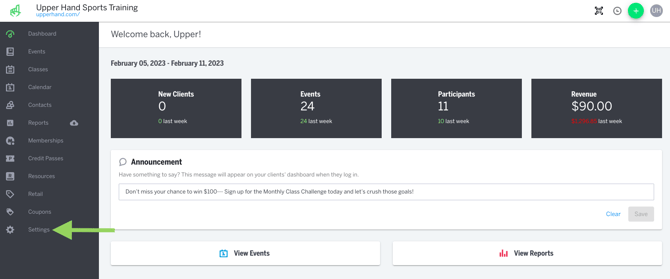
- Click Settings in the main navigation bar on the left hand side.
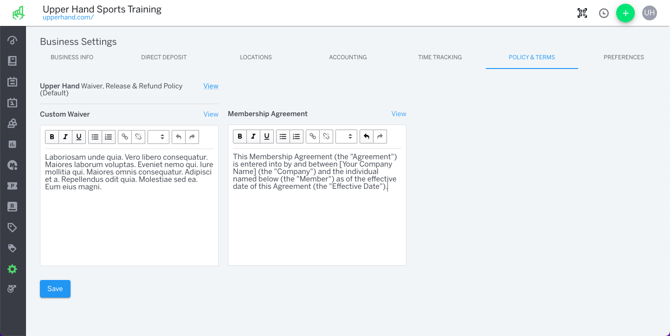
- Click on the Policy & Terms tab inside your Business Settings.
- Inside the Custom Waiver text box, add your waiver you wish to have clients agree to.
- Inside the Membership Agreement text box, add your membership contract if you wish to have clients agree to it prior to purchasing a membership.
- Click Save.
Historical Waivers & Agreements
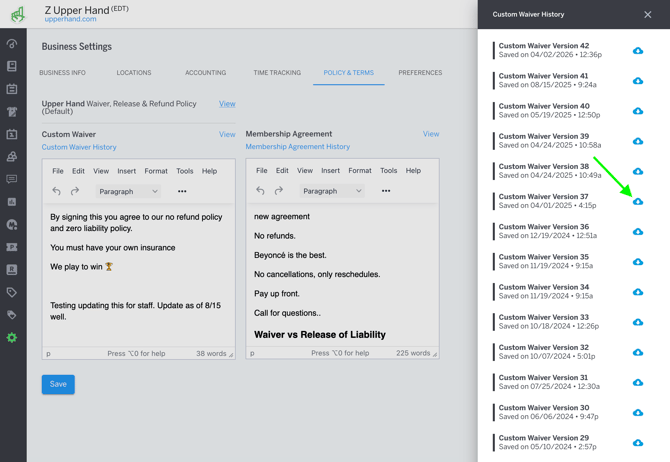
- All historical waivers are saved and downloadable by selecting Customer Waiver History or Membership Agreement History
- Select the blue cloud icon to download a historical waiver
Things to Note
- Clients will be required to agree to the waiver after they initially create their account and will be required to agree to the membership agreement when they purchase any membership.
- Anytime you make a change to the Custom Waiver, clients will be prompted to agree to the new terms the next time they login.
To further your understanding of this feature, be sure to check out the course: 03. Upper Hand Account Setup inside Upper Hand University.