APPLIES TO: Admins
Last updated: May 6, 2026
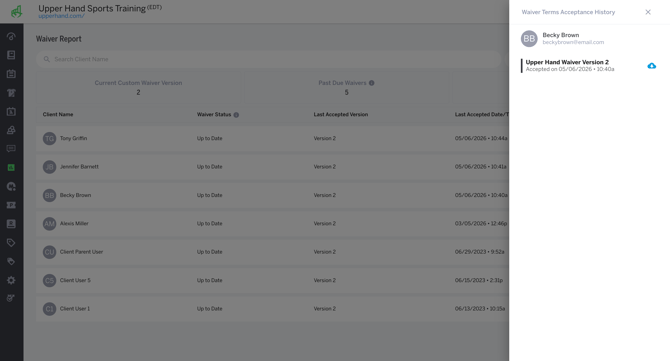
Use the Waivers Report to get a full view of who has accepted the most up-to-date version of your custom waiver and who is past due.
Waivers Report
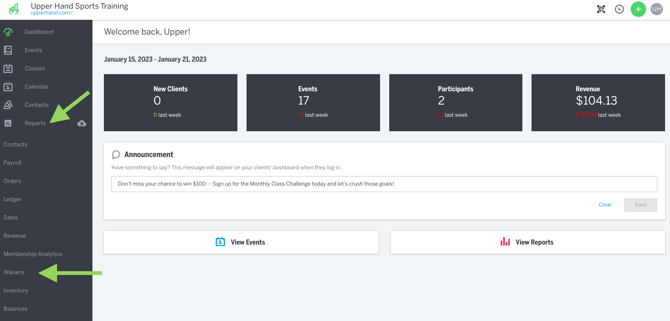
- To access the report, log in to your Upper Hand account and hover over the main navigation bar on the left, click Reports > Waivers.
- The report will default to list all clients with up-to-date waiver acceptances. Once you're viewing the report you will also see:
- The current waiver version added in your Business Settings
- The date and time your current waiver version was last updated
- A count of past due waivers
- Note: The past due waiver count is the sum of all clients who have do not have a current waiver on file but have signed a past version of the waiver and those who have never accepted the waiver (most likely due to never logging in or accessing their account.)
.png?width=670&height=363&name=Default%20Waiver%20Report%20(NEW).png)
- You can search by client name or by waiver statuses Up to Date, Past Due, and Never Accepted
- To view the client's wavier acceptance history just click on their name listed and their specific waiver acceptance drawer will populate