---
title: Create Custom Registration Fields
description: In this article, learn how to create custom registration fields and edit current fields
---
[Skip to content](https://help.upperhand.com/create-custom-registration-fields#main-content)
English
Show submenu for translations
[Submit a ticket](https://help.upperhand.com/kb-tickets/new?hsLang=en)

Open main navigation
Close main navigation
- English
Show submenu for translations
- [Submit a ticket](https://help.upperhand.com/kb-tickets/new)
- [Go to upperhand.com](https://upperhand.com/)
[Go to upperhand.com](https://upperhand.com/)
Hello. How can we help you?
- There are no suggestions because the search field is empty.
1. [UP Help Center](https://help.upperhand.com/?hsLang=en)
2. [Events](https://help.upperhand.com/events?hsLang=en)
3. [Event Setup](https://help.upperhand.com/events?hsLang=en#event-setup)
# Create Custom Registration Fields
## In this article, learn how to create custom registration fields and edit current fields
APPLIES TO: Admins & staff with event creation access
LAST UPDATED: July 14, 2025
When creating an event/team in the Registration tab you will now be able to create your own fields or edit current fields to meet your registration needs.
Creating a Custom Registration Field
- Navigate to the Registration tab of an event/team
- Select what Category you want to add a field to
- Scroll to the bottom and select +Add Custom Field
- Select Field Type
- Multiple Choice - you will be able to input what options you want your clients to choose from
- Number - clients will only be able to input a number
- Long Text - clients will be able to input a long response
- Short Text - clients will be able to input a short response
- Input Name Field - this is the registration field that your clients will see during checkout when completing the registration form
- Field Options - input what options you want your clients to choose from during registration.
- Note: this is only applicable for Multiple Choice field type
- Select Save
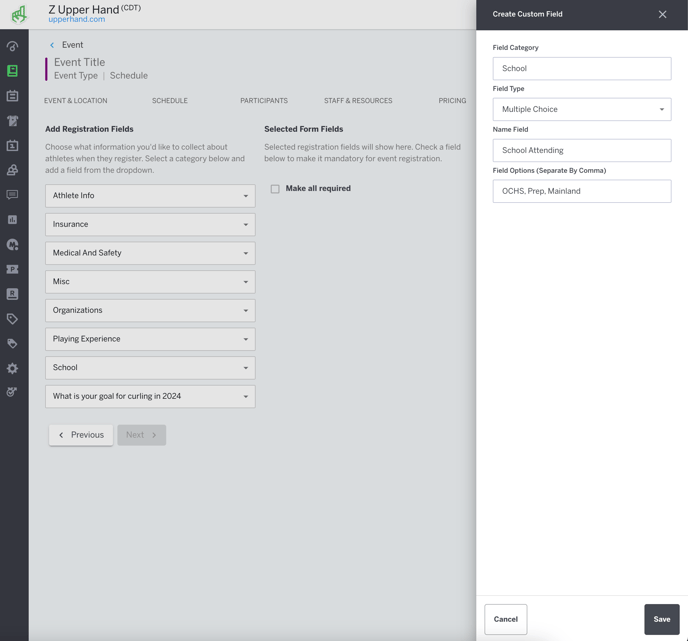
- This field will auto assign to the current event you're viewing and will be available in the category you created it under for future event use.
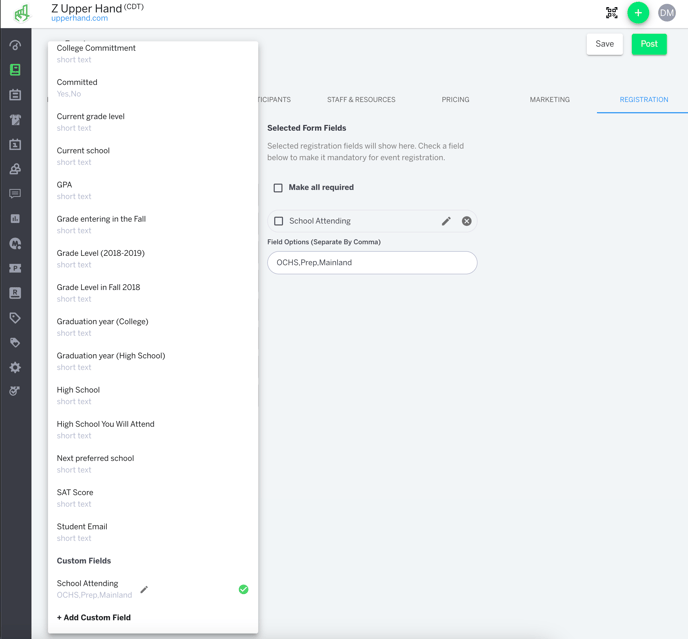
Editing a Current Field
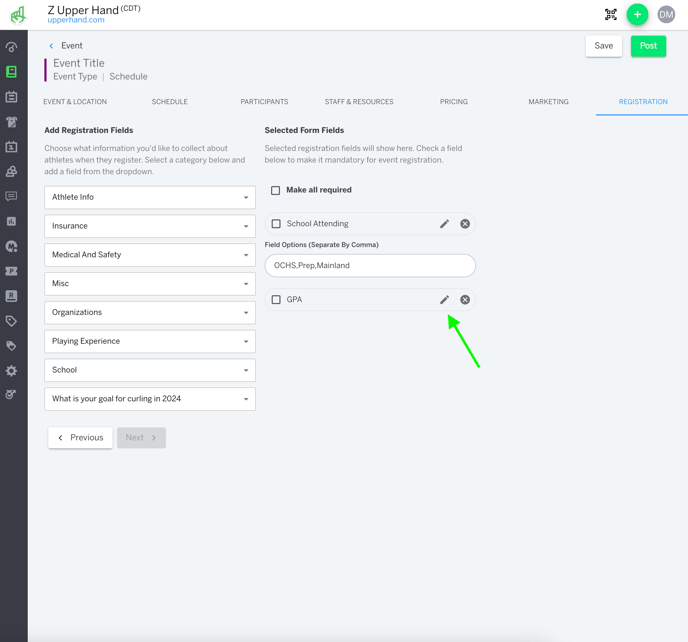
- Select a field from the drop down that you want to add & edit
- Select the Pencil icon next to the field on the right hand side
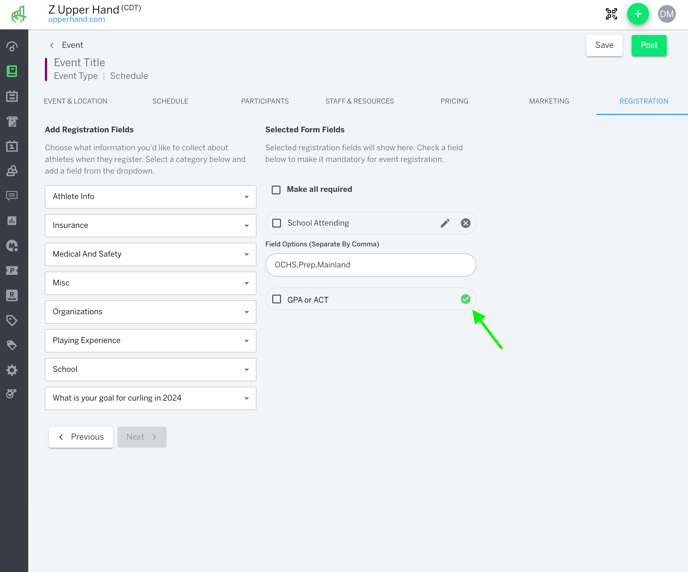
- Edit the field and select the green check mark when finished
- Note: this will only edit the field for this event, not all events
- [Getting Started](https://help.upperhand.com/getting-started?hsLang=en)
- [Account Setup](https://help.upperhand.com/account-setup?hsLang=en#main-content)
- [Account Settings](https://help.upperhand.com/account-setup?hsLang=en#account-settings)
- [Help & Resources](https://help.upperhand.com/account-setup?hsLang=en#help-resources)
- [Billing](https://help.upperhand.com/account-setup?hsLang=en#billing)
- [Events](https://help.upperhand.com/events?hsLang=en#main-content)
- [Event Setup](https://help.upperhand.com/events?hsLang=en#event-setup)
- [Browse Events](https://help.upperhand.com/events?hsLang=en#browse-events)
- [Event Admin View](https://help.upperhand.com/events?hsLang=en#event-admin-view)
- [Classes](https://help.upperhand.com/classes?hsLang=en)
- [Teams](https://help.upperhand.com/teams?hsLang=en)
- [Calendar](https://help.upperhand.com/calendar?hsLang=en)
- [Contacts](https://help.upperhand.com/contacts?hsLang=en#main-content)
- [Staff](https://help.upperhand.com/contacts?hsLang=en#staff)
- [Clients](https://help.upperhand.com/contacts?hsLang=en#clients)
- [Groups](https://help.upperhand.com/contacts?hsLang=en#groups)
- [Archived](https://help.upperhand.com/contacts?hsLang=en#archived)
- [Marketing](https://help.upperhand.com/marketing?hsLang=en)
- [Reports](https://help.upperhand.com/reports?hsLang=en)
- [Memberships](https://help.upperhand.com/memberships?hsLang=en)
- [Credit Passes](https://help.upperhand.com/credit-passes?hsLang=en)
- [Resources](https://help.upperhand.com/resources?hsLang=en)
- [Retail](https://help.upperhand.com/retail?hsLang=en)
- [Settings](https://help.upperhand.com/settings?hsLang=en)
- [Point of Sale (POS)](https://help.upperhand.com/point-of-sale-pos?hsLang=en)
- [Payments](https://help.upperhand.com/payments?hsLang=en#main-content)
- [Paysafe/NETBANX](https://help.upperhand.com/payments?hsLang=en#paysafe-netbanx)
- [Client Side](https://help.upperhand.com/client-side?hsLang=en#main-content)
- [Top Searched Articles](https://help.upperhand.com/client-side?hsLang=en#top-searched-articles)
- [Account Management](https://help.upperhand.com/client-side?hsLang=en#account-management)
- [Event Sign Up](https://help.upperhand.com/client-side?hsLang=en#event-sign-up)
- [Scheduling](https://help.upperhand.com/client-side?hsLang=en#scheduling)
- [Payments](https://help.upperhand.com/client-side?hsLang=en#payments)
- [Memberships & Passes](https://help.upperhand.com/client-side?hsLang=en#memberships-passes)
- [Additional Resources](https://help.upperhand.com/additional-resources?hsLang=en#main-content)
- [Hardware](https://help.upperhand.com/additional-resources?hsLang=en#hardware)
- [Upper Hand AI](https://help.upperhand.com/additional-resources?hsLang=en#upper-hand-ai)
- [WebKit by Upper Hand](https://help.upperhand.com/additional-resources?hsLang=en#webkit-by-upper-hand)
- [Admin Side](https://help.upperhand.com/admin-side?hsLang=en#main-content)
- [Scheduling](https://help.upperhand.com/admin-side?hsLang=en#scheduling)
[](https://upperhand.com)
Email Hours: M-F 9am - 2am EST
Chat Hours: M-F 9am - 5pm EST
Copyright © 2026, Upper Hand